Chat starter kit
The Chat Starter Kit shows how to integrate tldraw's infinite canvas into an existing chat application. Built on Vercel's useChat hook, this template shows you how to add visual annotation capabilities to any app (in this case, a chat).
To build with a chat starter kit, run this command in your terminal:
npm create tldraw@latest -- --template chatOnce you've followed the instructions, you'll need to create a .env.local file with an API key from Google AI Studio:
GOOGLE_GENERATIVE_AI_API_KEY=<your key>
Use cases
This starter kit shows how to add visual capabilities to:
AI chat apps
Add visual context to conversational AI by letting users sketch diagrams, annotate screenshots, and draw concepts to supplement text conversations.
Design feedback apps
Add annotation to your design review tools so teams can mark up mockups, wireframes, and prototypes within chat conversations.
Educational platforms
Add drawing capabilities to tutoring interfaces so students can sketch math problems, create diagrams, and get visual help.
Documentation systems
Add visual markup to help desk or support chat so users can annotate screenshots and create flowcharts.
Content creation tools
Add sketching and annotation to creative collaboration platforms so teams can mark up references and brainstorm visually.
How it works
This starter kit demonstrates how to add tldraw's visual capabilities to an existing chat application. The integration uses a modal to bring annotation tools directly into your chat UI.
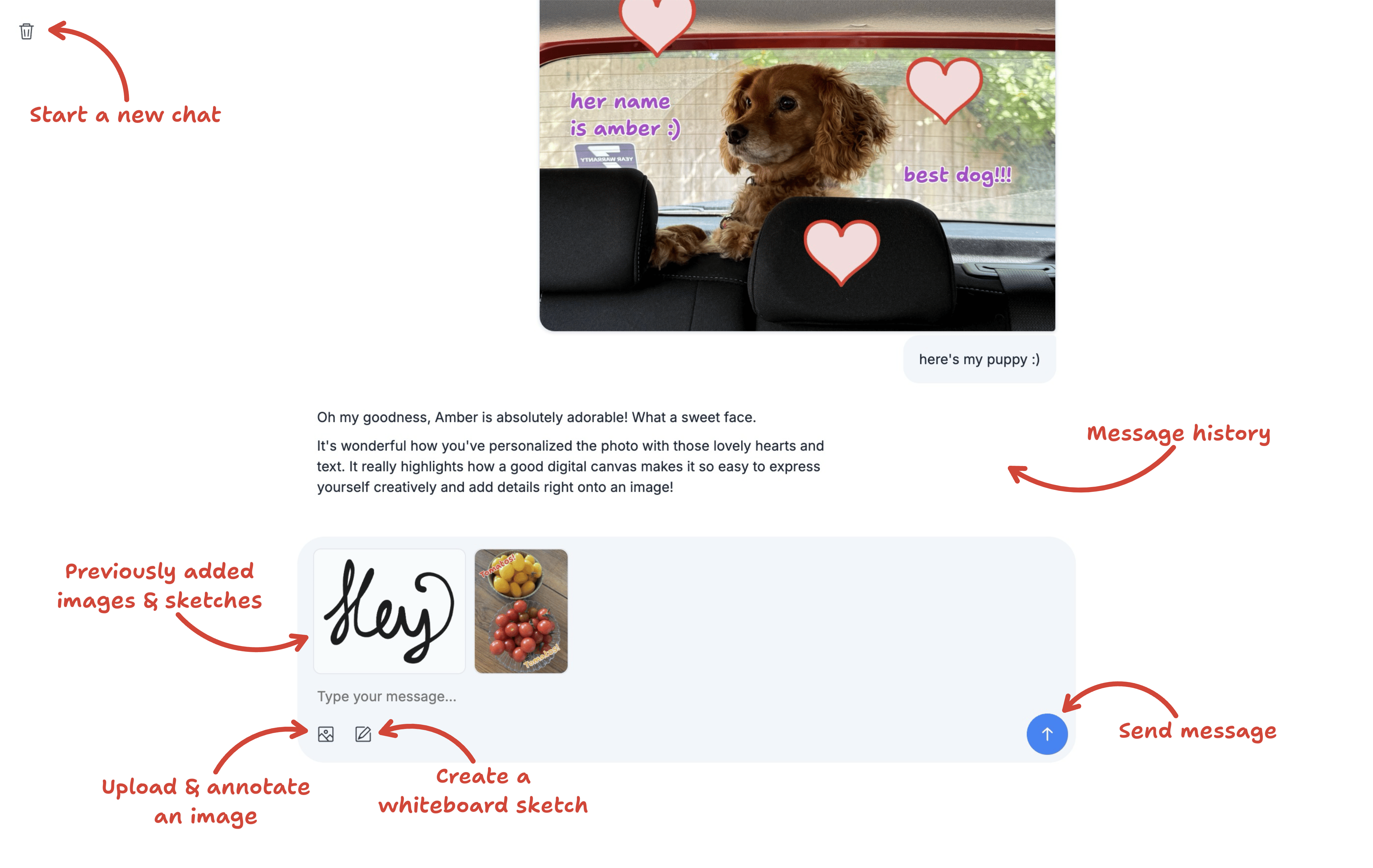
1. Whiteboard modal
The whiteboard opens a modal tldraw editor whenever users want to create or edit visual content. The modal supports uploaded images, freehand drawing, and editing of images from chat history.
2. Automatic image annotation
When an image is uploaded for the first time, the editor places it on the canvas, centers the camera on it, and switches into cropping mode using editor.setCurrentTool('select.crop'). From there, users can quickly crop their image to the desired section or add annotations on top.
3. Snapshot saving
Once the user has finished sketching or annotating, the editor exports the work as a PNG ready to send to the LLM. At the same time, it saves a tldraw snapshot of the session. This allows users to reopen the image as a whiteboard and continue working from where they left off, without flattening the individual shapes into pixels.
Customization
This starter kit provides a minimal integration between tldraw and a chat app. You can tailor the modal's appearance, available tools, and overall behavior.
Modifying the upload workflow
You can customize the automatic crop behavior, add image processing steps, or extend support for additional file types to match your app's needs.
See src/components/WhiteboardModal.tsx:195 for the automatic crop activation and src/components/Chat.tsx:148 for drag-and-drop handling.
Adapting to your design system
Since tldraw is built with React, you can adapt both the modal behavior and its appearance to integrate with your chat interface. This includes controlling when the modal opens, how it looks, and which tools are available.
For example, see src/components/WhiteboardModal.tsx:92 for UI component overrides, src/components/Chat.tsx:113 for the history image click handler, and src/app/styles.css for styling.
Further reading
-
Custom shape utilities: Learn how to create custom shapes with their own interactions.
-
Editor API: Learn about the tldraw Editor.
-
Customize the user interface: Learn how to customize the user interface of your tldraw application.
Building with this starter kit?
If you build something great, please share it with us in our #show-and-tell channel on Discord. We want to see what you've built!